Upload Inventory

Learn how to upload inventory, map columns, review validation results, and sync inventory with GMEX.

Overview

Upload your inventory file, review the results, and sync eligible records with GMEX. If you do not have a DSA ERP system, contact info@gmex.com for help with inventory uploads.

DSA Inventory

Upload inventory from a CSV or Excel file, select a warehouse, map the file columns, and review the upload and synchronization results.

01 · File Import

Upload Inventory File

Go to Inventory Management → Upload to upload your inventory file. You can download the sample template to prepare your data.

  • Supported formats: .csv and .xlsx.
  • Download the sample template if needed.
  • Select the warehouse for the inventory.
  • Select Continue to map the columns.

Example screen
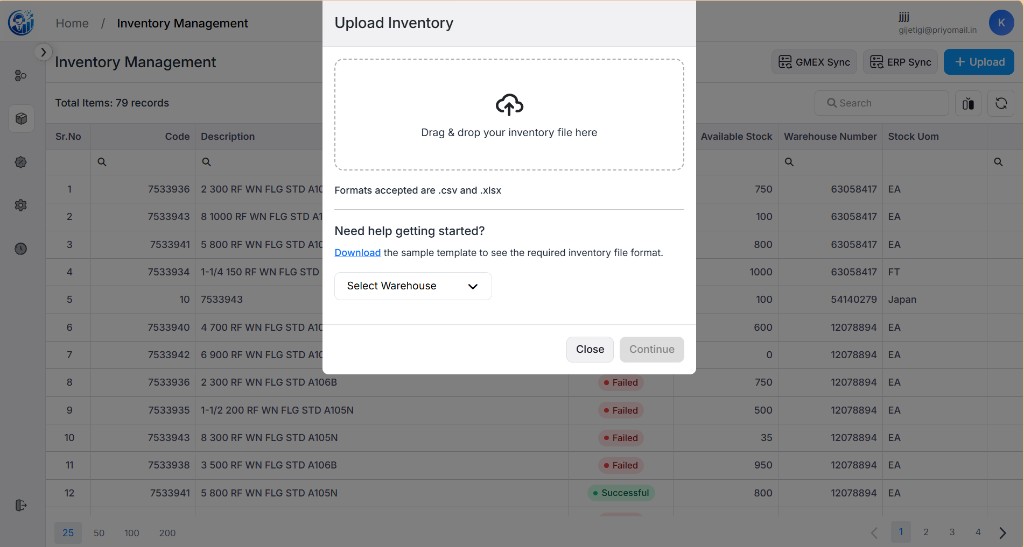
DSA inventory upload interface
Upload an inventory file and select a warehouse

Note: You are responsible for the accuracy of all inventory data uploaded. Please verify your data carefully before submitting.

02 · Data Mapping

Map Inventory Columns

Match the columns in your file to the inventory fields required by DSA. Use the preview to check your data before uploading.

  • The blue column indicates the current mapping.
  • The preview shows the first 10 rows; the upload processes the entire file.
  • Select Create to save the mapping and upload the inventory.
  • Select Back to return to the previous screen.
  • Select Clear Selection to clear the current mapping.

Example screen

DSA inventory column mapping interface
Map file columns to inventory fields

03 · Upload Validation

Review Upload Results

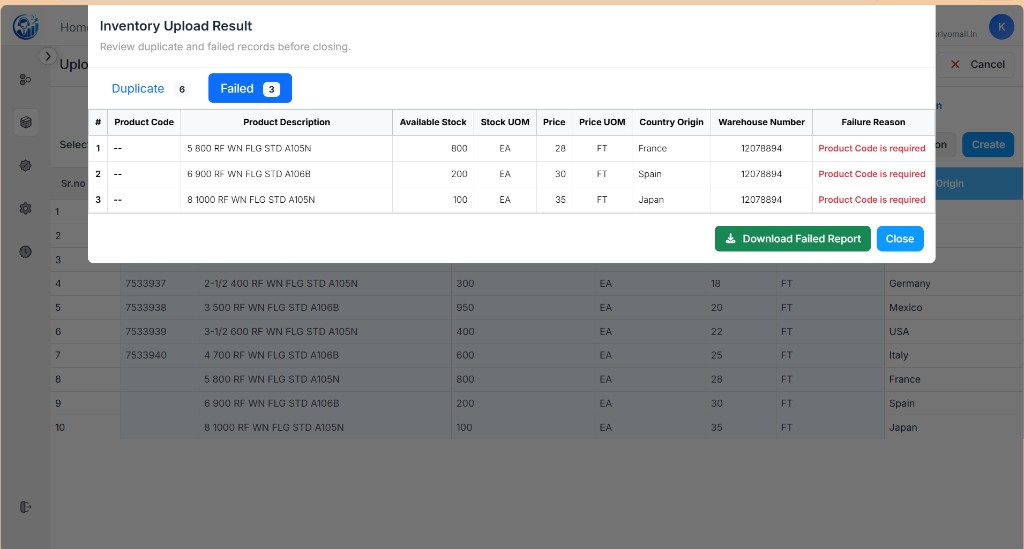
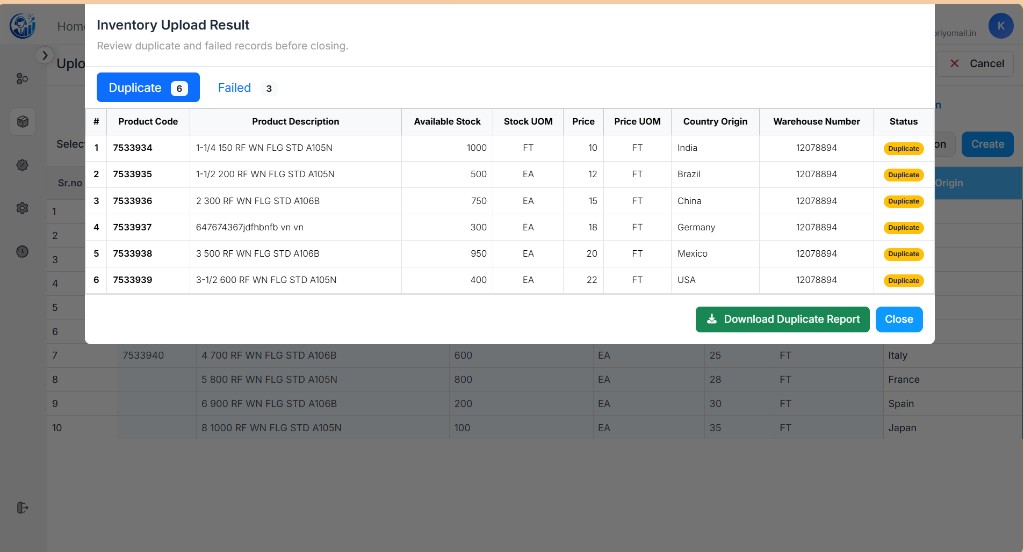
After the upload, review any duplicate or failed records. Download the reports to check the details and resolve issues where needed.

Result Meaning
Duplicate Records Records identified as duplicates in the uploaded file. Download the report for review.
Failed Records Records that could not be uploaded. Check the reported failure reason and download the report for details.

Example: The results may show 6 duplicate records and 3 failed records. A failure reason might be Product Code is required.

Example screen

DSA inventory upload results showing duplicate records
Duplicate records and downloadable reports

Example screen

DSA inventory upload results showing failed records
Failed records and their failure reasons

04 · Inventory Review

Review Uploaded Inventory

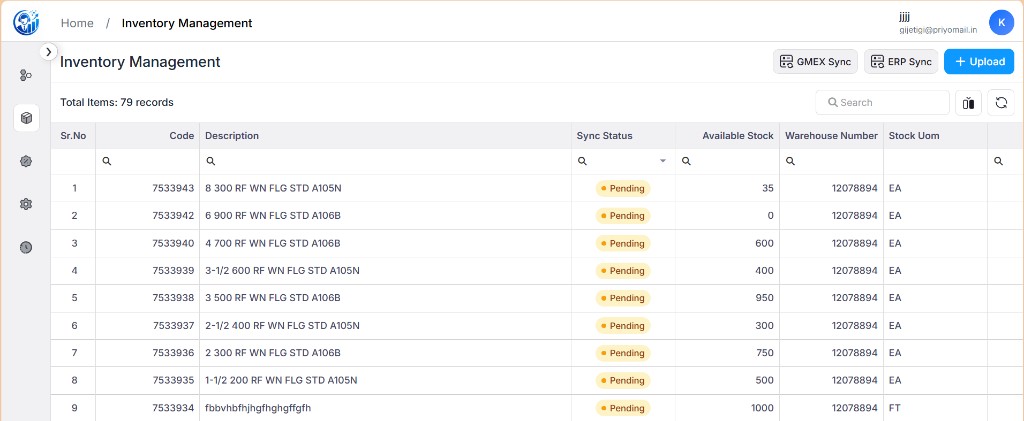
View uploaded records in the Inventory Management list. Check the product details and synchronization status before syncing with GMEX.

Pending: The inventory has been saved and is waiting to sync with GMEX.

Example screen

Uploaded inventory list showing product details and synchronization status
Review inventory records and sync status

05 · GMEX Synchronization

Sync Inventory with GMEX

Select GMEX Sync to send eligible inventory records to GMEX. Review the status to see which records were updated, failed, or had already been synced.

Result Meaning
SUCCESSFUL The record was synced successfully or had already been synced.
FAILED The record could not be updated in GMEX. Review the reported issue.

A successful sync may display: Inventory sync completed successfully.

Example Sync Summary

Record Count Status Outcome
18 SUCCESSFUL Records updated in GMEX. Examples include Flange, Pipe, and Reducer products with a shape value.
29 FAILED Records not updated in GMEX because the shape value was missing in this example.
41 SUCCESSFUL Records that had already been synced and did not need to be written again.
88 — Total records in this example.

ERP Sync

Coming soon: ERP Sync is planned to import inventory data directly from a database when an Excel file is not available. This feature is not yet available.

Need Help Uploading Inventory?

If you do not have a DSA ERP system, contact GMEX at info@gmex.com for assistance with inventory uploads.

Related Documentation

Additional Resources

© 2026 GMEX Platform Inc. All rights reserved. • Seller DSA Documentation